 Winnie Tag Editor support
Getting started with Winnie Tag Editor
Winnie Tag Editor edits the tags inside your music files. The whole workflow takes three steps: open a folder, edit a file and save.
3 steps · Winnie Tag Editor
Open a folder
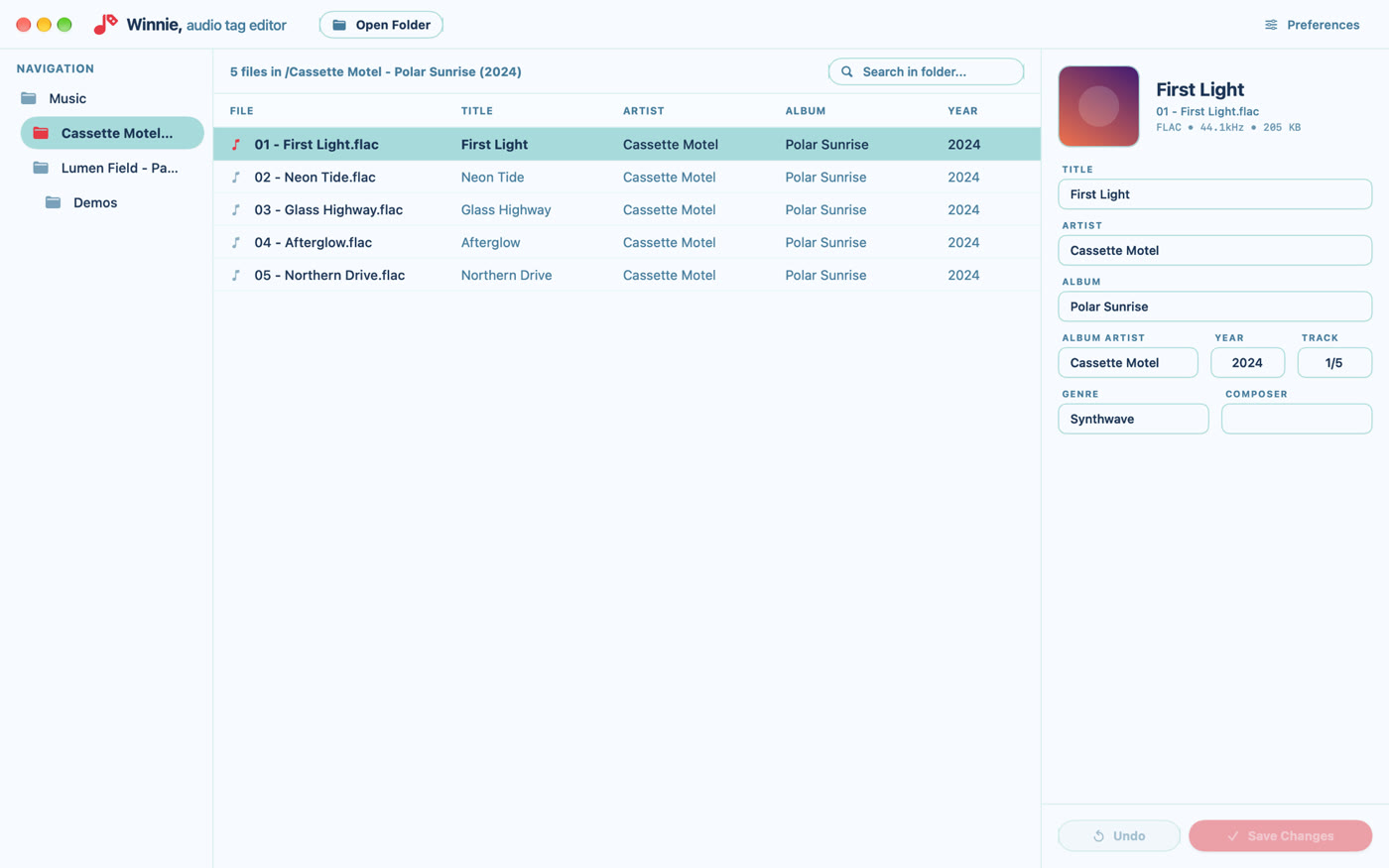
Press Open Folder and pick the folder that holds your music. Winnie Tag Editor scans it and lists its subfolders on the left.
The app can only read and write inside the folder you choose. Next time, it reopens the same folder for you. You can turn that off in Preferences ▸ General.
Edit the tags
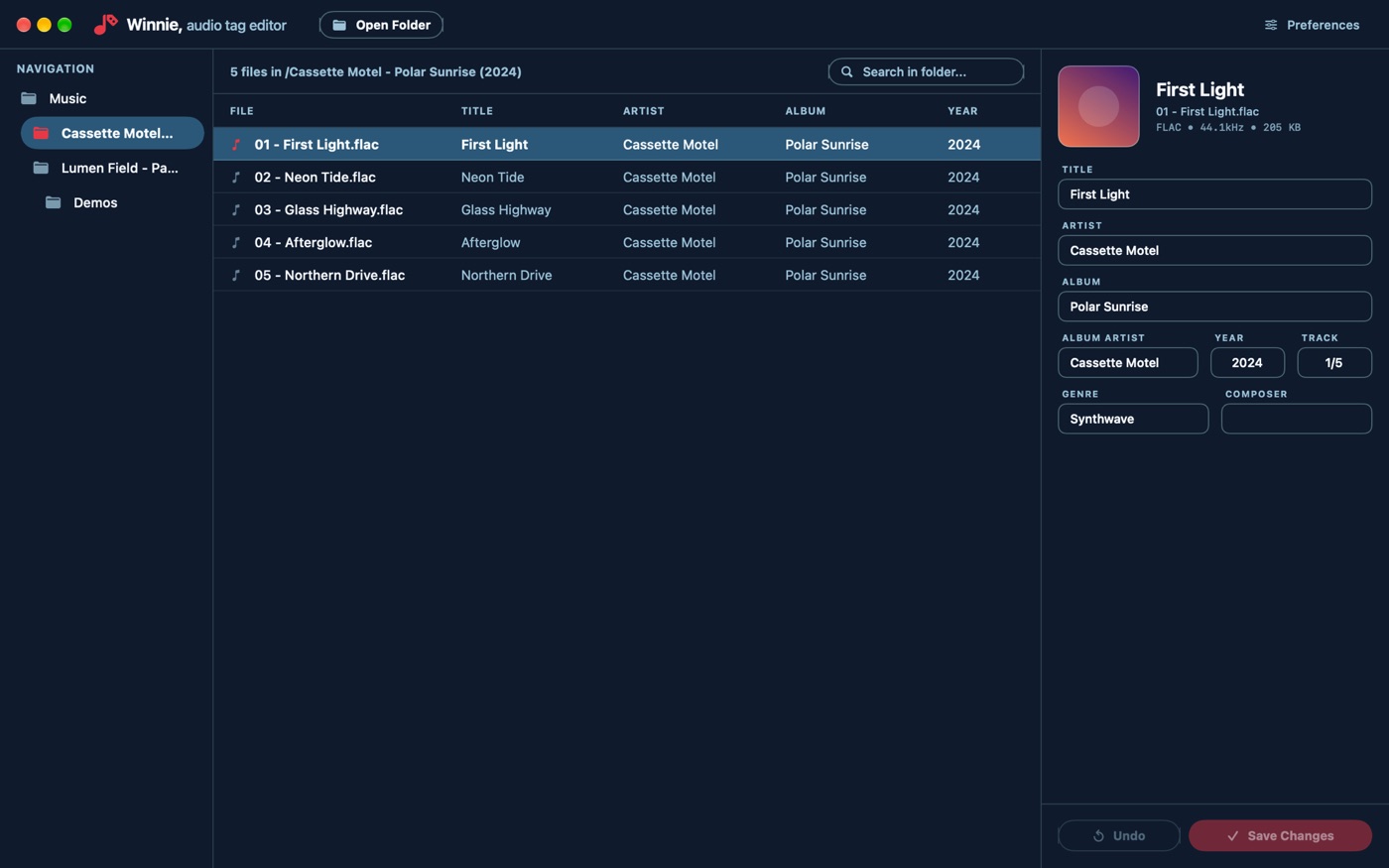
Pick a folder, then a file, and type in the fields on the right: Title, Artist, Album, Album Artist, Year, Track, Genre and Composer.
Track accepts a number (4) or a number and a total (4/12).
Click the cover square to choose cover art. JPEG and PNG images are embedded exactly as they are, without being resized or recompressed.
Save
Unsaved files are marked in red. Press Save Changes for the selected file, or Save All in the top bar for everything.
Only the tags you changed are rewritten. The audio is never re-encoded, and other tags in the file are kept as they were.
Winnie Tag Editor includes a full user guide. Choose Help ▸ Winnie User Guide (⌘?), or open it from Preferences ▸ General.
Check that its type is switched on in Preferences ▸ Formats, and that it is MP3, FLAC, AAC, WAV, AIFF, Ogg Vorbis or Opus. If you are searching, clear the search field.