 Winnie audio tag editor
Support
How can we help?
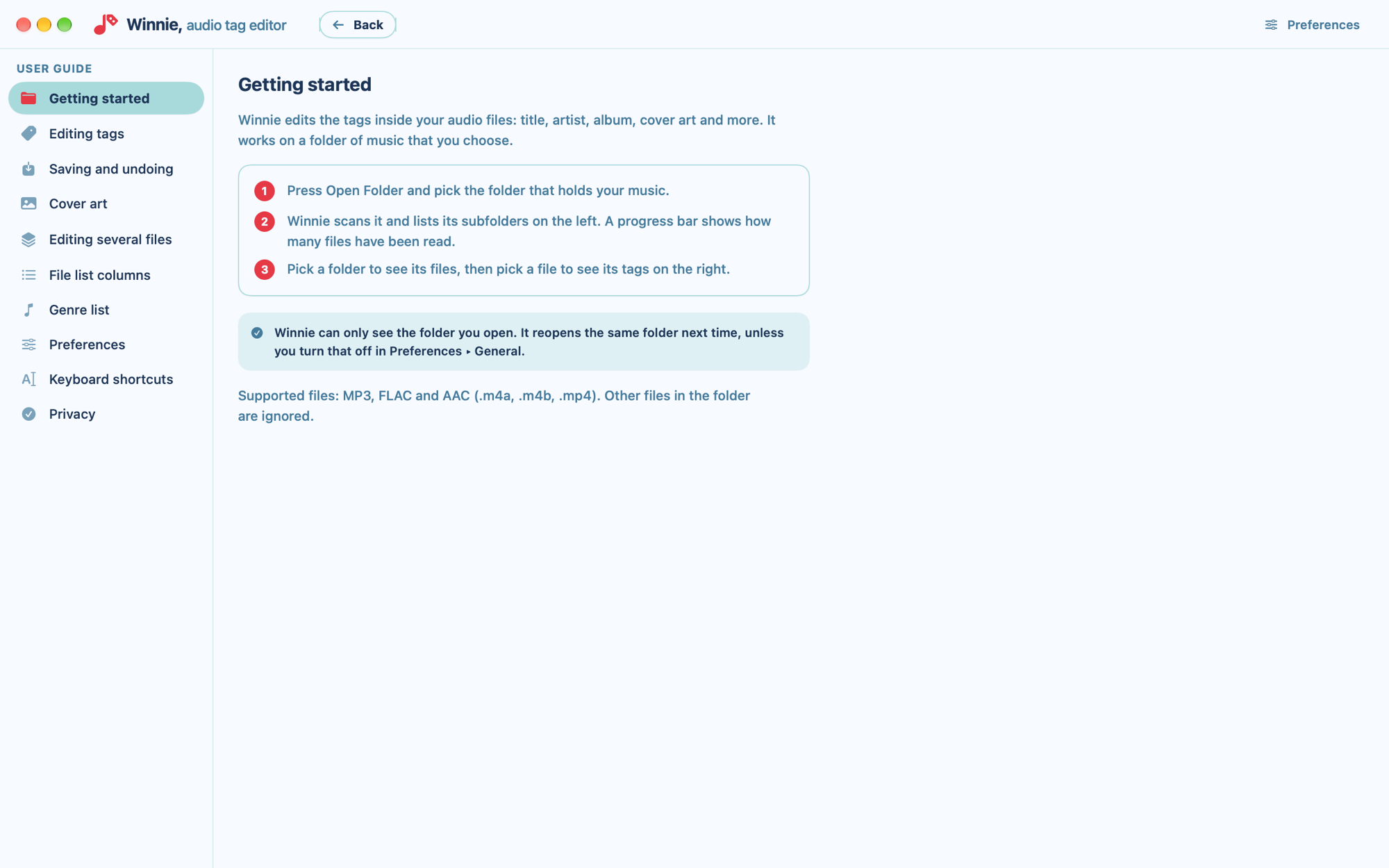
Winnie includes a full user guide: choose Help ▸ Winnie User Guide (⌘?), or open it from Preferences ▸ General. The essentials are below, and you can always write to [email protected].
Getting started
- Open a folder. Press Open Folder and pick the folder that holds your music. Winnie scans it and lists its subfolders on the left.
- Edit. Pick a folder, then a file, and type in the fields on the right. Click the cover square to choose cover art.
- Save. Unsaved files are marked in red. Press Save Changes for the selected file, or Save All in the top bar for everything.
Common questions
Which files can Winnie edit?
MP3, FLAC and AAC (.m4a, .m4b and .mp4). Other files in the folder are ignored. You can hide a file type in Preferences ▸ Formats.
Which tags can I edit?
Title, Artist, Album, Album Artist, Year, Track, Genre and Composer, plus cover art. Track accepts a number (4) or a number and a total (4/12).
Does Winnie change my audio?
No. The audio is never re-encoded. Only the tags you change are rewritten, and other tags in the file are kept as they were.
How do I edit several files at once?
On the Mac, click the first file, then hold ⌘ and click to add or remove files, or hold ⇧ and click to select a range. Whatever you type is written to every selected file. A field showing “Multiple values” has different values in the selected files; leave it alone to keep them. Selecting several files is not available on iPad.
What images can I use as cover art?
JPEG or PNG. The image is embedded exactly as it is, without being resized or recompressed.
Can I undo a change?
Undo discards the unsaved changes of the selected file or files. Once a file has been saved, its previous tags cannot be brought back, so check your edits before saving a large batch.
How do I change the columns in the file list?
Open Preferences ▸ File List. Drag columns between Shown and Hidden, and drag shown columns to reorder them. Clicking a column moves it to the other list. In narrow windows, such as an iPad held upright, only the first two columns are shown.
How do I pick genres from a list?
Genre is a free text field by default. To use a dropdown, turn on “Choose genre from a list” in Preferences ▸ Tags. You can then rename, remove and add genres in the list, or restore the default list.
Should I write ID3v2.3 or ID3v2.4 for MP3?
ID3v2.3 is the most widely supported by older players and car stereos. ID3v2.4 is newer and stores text as UTF-8. You choose in Preferences ▸ Tags.
Does Winnie need an internet connection or an account?
No. Winnie never connects to the internet and has no accounts. See the privacy policy.
Which languages does Winnie support?
English and Spanish. Change it in Preferences ▸ General. The text of your tags is never translated.
What do I need to run it?
A Mac with macOS 26.4 or later, or an iPad with iPadOS 26.0 or later.
Troubleshooting
A file is missing from the list
Check that its type is switched on in Preferences ▸ Formats, and that it is an MP3, FLAC or AAC file. If you are searching, clear the search field.
Winnie did not reopen my folder
If the folder was moved, renamed or is on a drive that is not connected, Winnie cannot reach it. Press Open Folder and choose it again.
A file could not be saved
Winnie shows which files failed. Make sure the file is not locked or read-only, that the drive has free space and is not write-protected, and that the file is not open in another app. Then save again.
I don't see a field I expect
Winnie edits the eight tags listed above. Other tags in your files are preserved when you save, but are not shown.
Contact
Email support
Write to [email protected]. It helps to include your version number (bottom-right corner of Preferences), whether you are on Mac or iPad, and the type of file involved.
For refunds and billing, contact Apple: purchases are handled by the App Store.